Setting up a Protocol
If you want to perform any sort of calculations on the data you’ve imported into Phaedra (see Data Capture), you’ll need to set up a protocol that defines those calculations precisely.
To learn more about the concept of protocols and calculation in general, refer to Calculation.
Creating a New Protocol
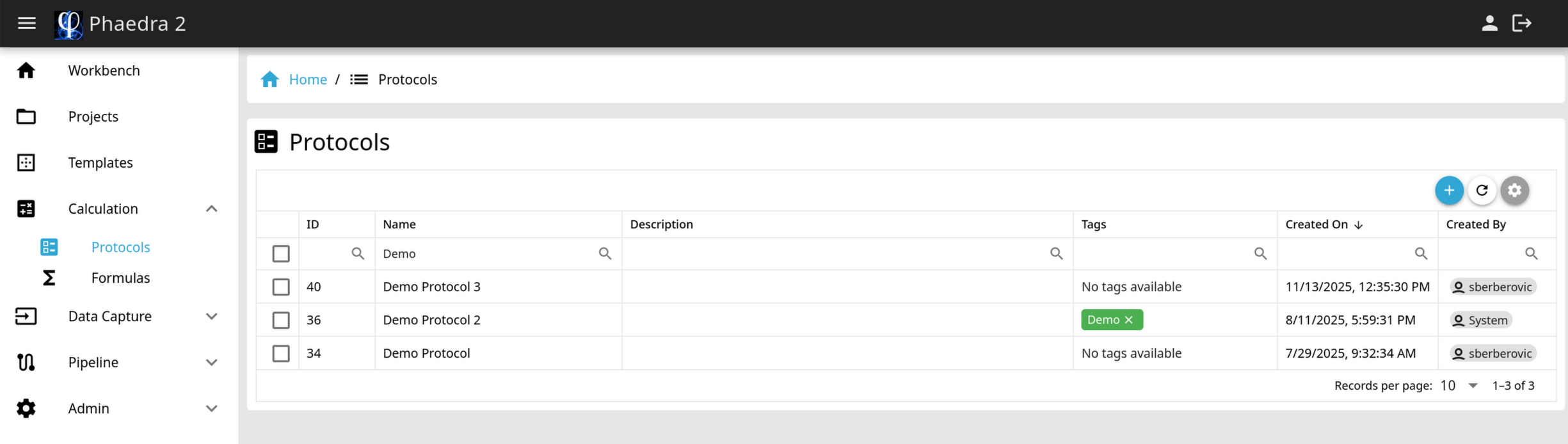
- In the Navigator, select Calculation to unfold its contents and then select Protocols. The protocol browser will open.
- In the top right corner of the table, click the blue + button (Create New Protocol)
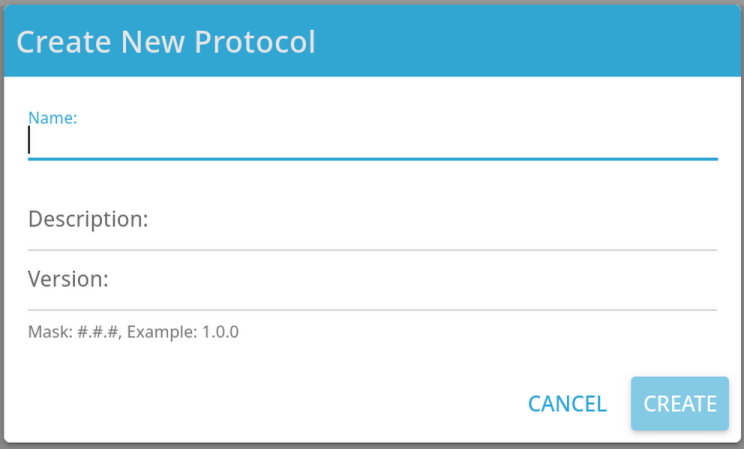
- Provide a name and optionally a description for the new protocol, then click Create.
Viewing a Protocol
In the protocol browser, double-click on any protocol to open it.
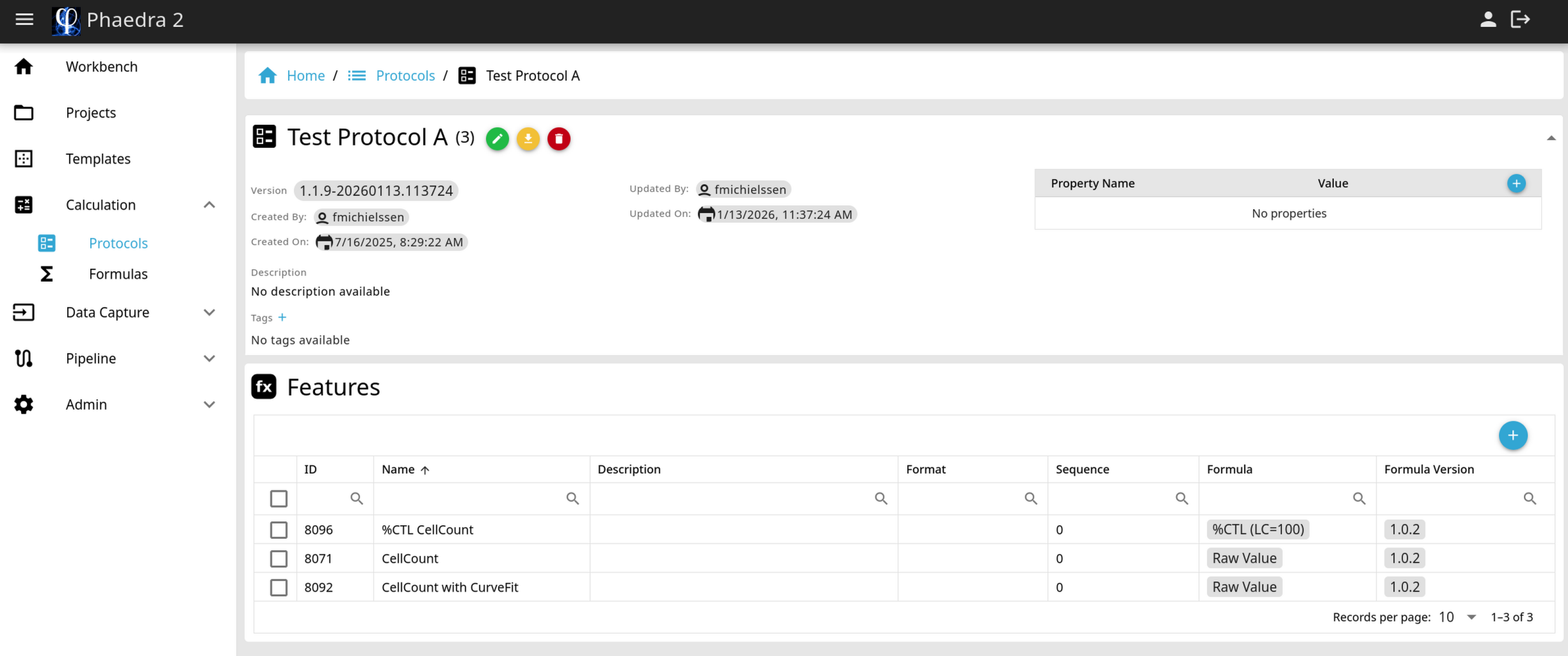
The top section displays general information about the protocol such as the name, version, description, modification info, as well as tags and properties.
The bottom section shows a list of all the features that have been defined in this protocol. To view or edit features, see the sections Viewing a Feature and Editing a Feature below.
Editing a Protocol
Note: Protocols are visible to all users, but only a protocol’s creator (or an administrator) can edit it.
You can modify the protocol’s name, description, tags and properties:
- To edit the name or description, click the Pencil button next to the protocol name.
- To add a tag, click the + button next to the Tags field. A tag is a simple label that can be attached to any protocol.
- To add a property, click the + button in the top right corner of the Properties table. A property is a Name-Value pair that can contain more detailed information than a tag.
Adding a New Feature
To add a new feature to the protocol, click on the blue + button (Add a New Feature) in the top right corner of the features list.
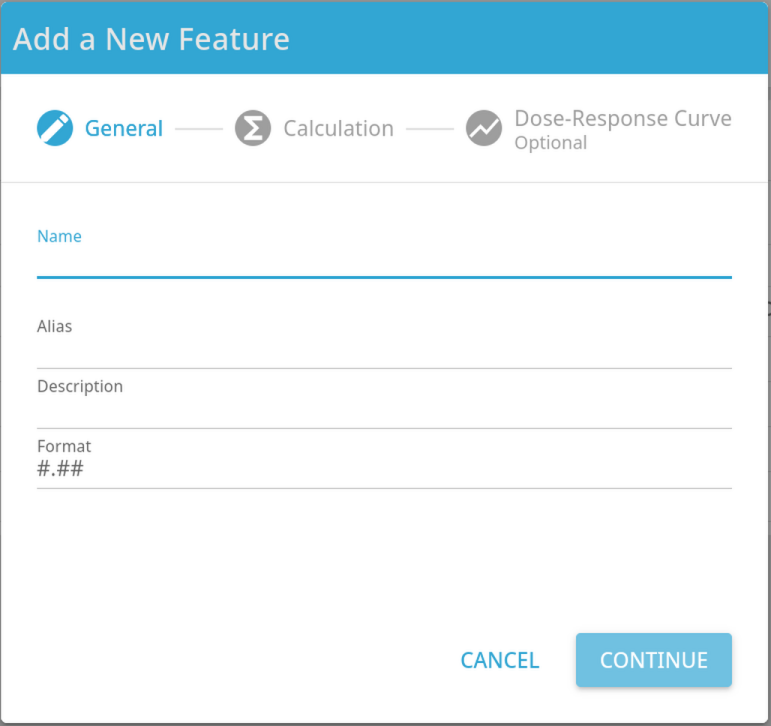
A dialog will appear where you can enter the details of the new feature:
- Provide a name for the new feature, and optionally an alias, description and format, then click Continue
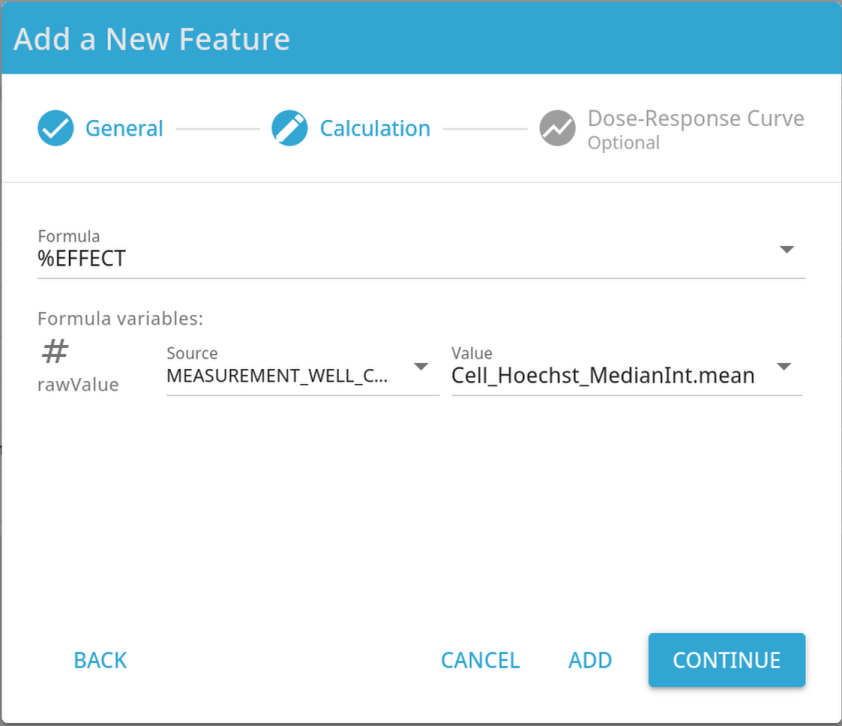
- In the Calculation section, choose one of the available formulas
- Depending on the selected formula, you must specify one or more formula variables
- For each variable, choose the Source and the Value that the formula should use
Note: For a more detailed explanation of formulas and their variables, refer to the Calculation Formulas section.
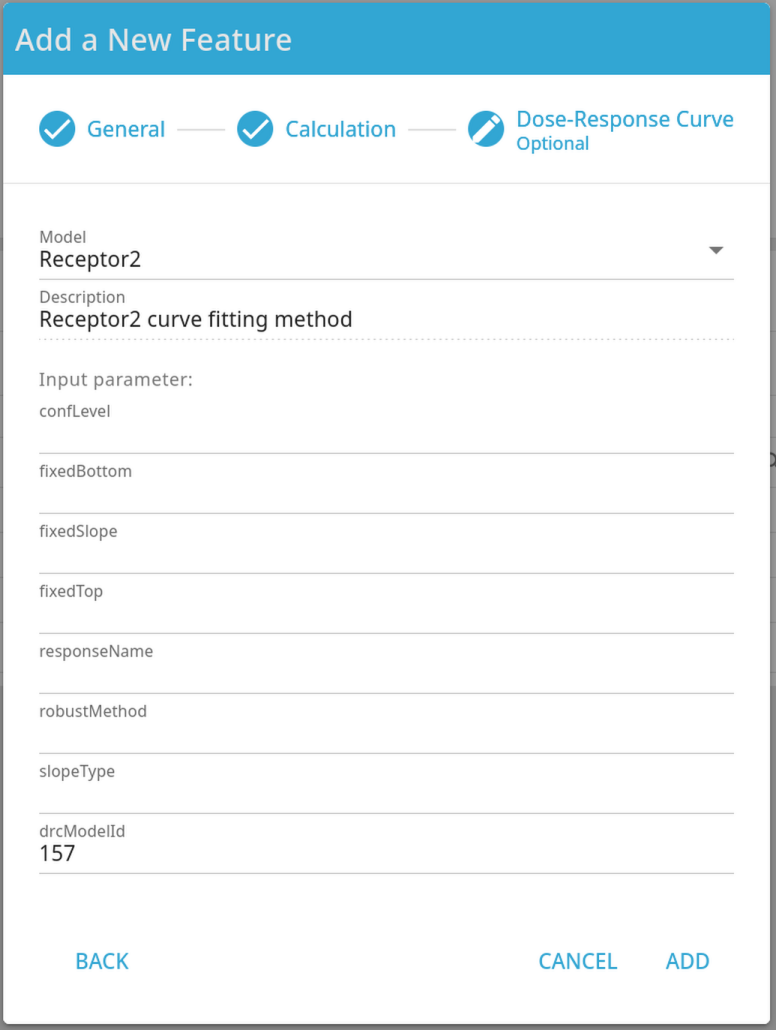
- Optionally, a dose-response curve fit can be configured on this feature
- When all relevant settings have been made, click Add to create and add the new feature to the protocol
Viewing a Feature
In the features list of a protocol, double-click on any feature to view its details.
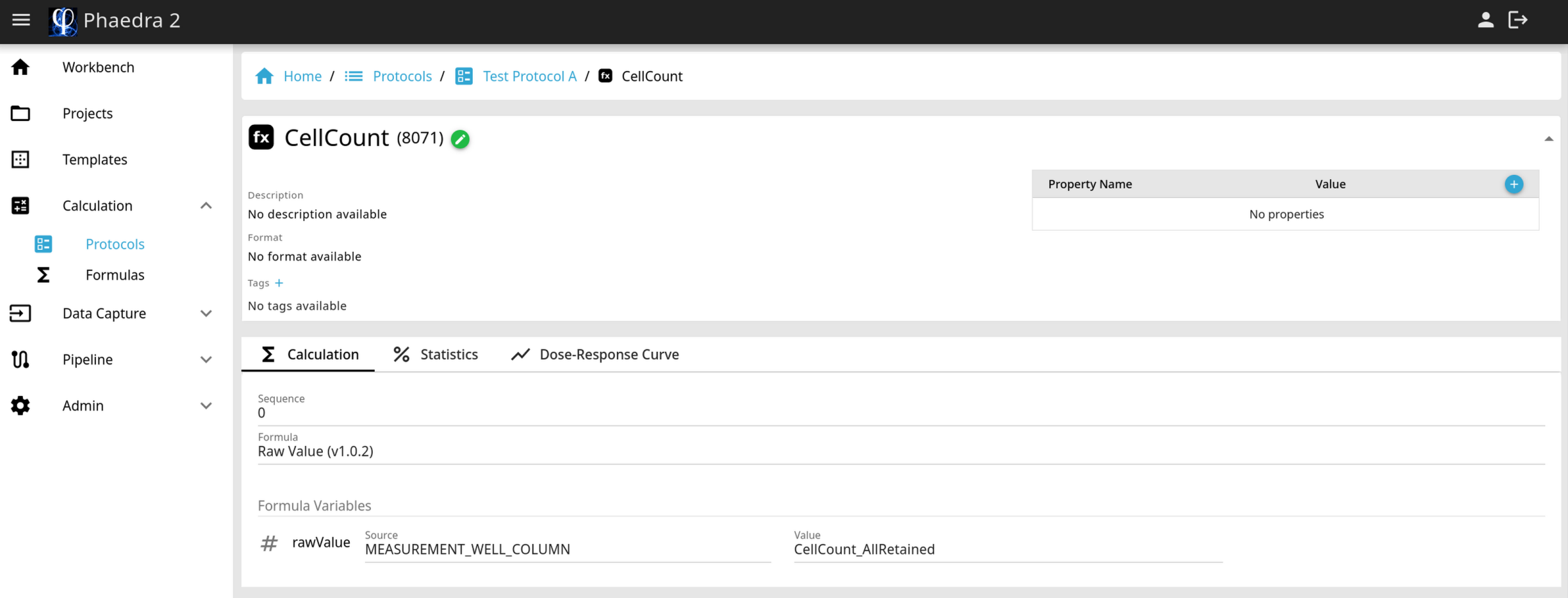
The top section displays general information about the feature, such as its name, description, formatting, tags and properties.
The bottom section is divided into multiple tabs, with each tab showing a different aspect of the feature’s configuration:
Calculation
This tab lists the settings related to the calculation of the feature:
-
Sequence: this field determines whether a feature is calculated before or after another feature. This setting is important if a feature’s calculation depends on the value of another feature.
-
Formula: this field displays the formula that is used during calculation of the feature, as well as the list of variables this formula needs.
Statistics
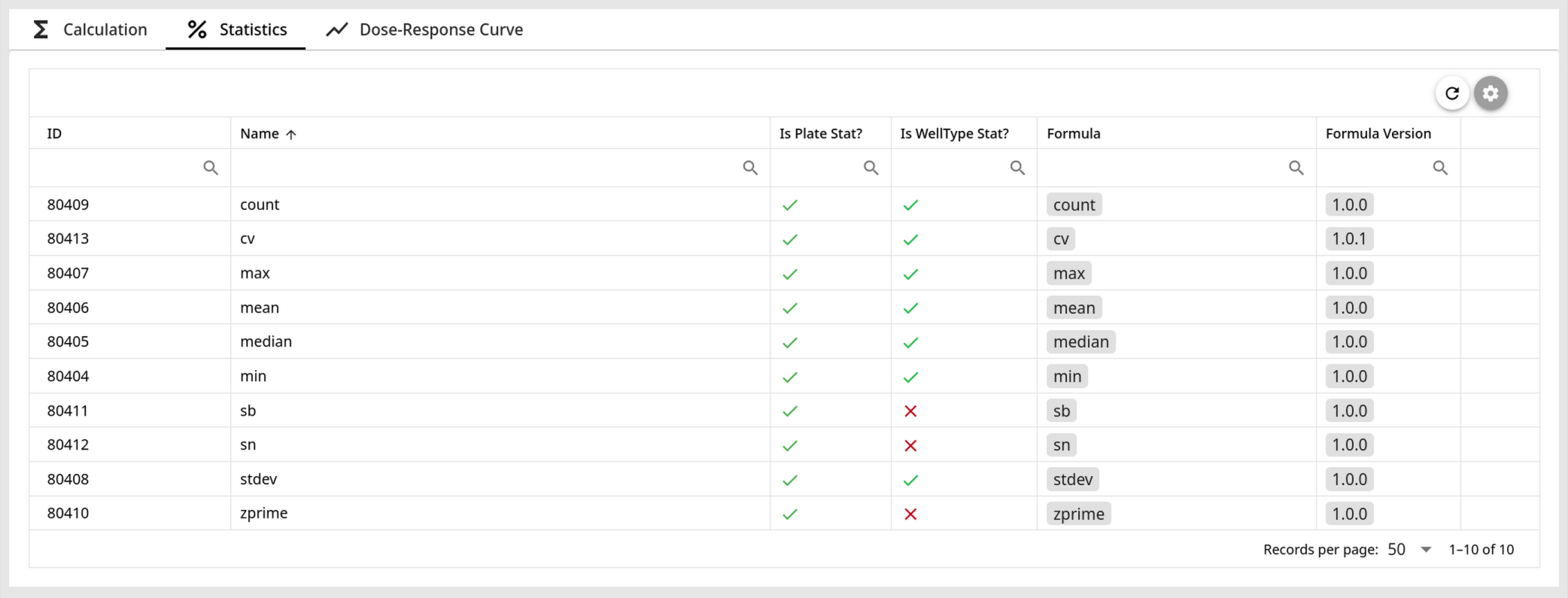
This tab lists the statistics that will be calculated on the feature. For example, if you define a “CellCount” feature that computes the cell count for each well in the plate, you can additionally compute the min, median, max CellCount as well, both for the entire plate and for each well type group in the plate.
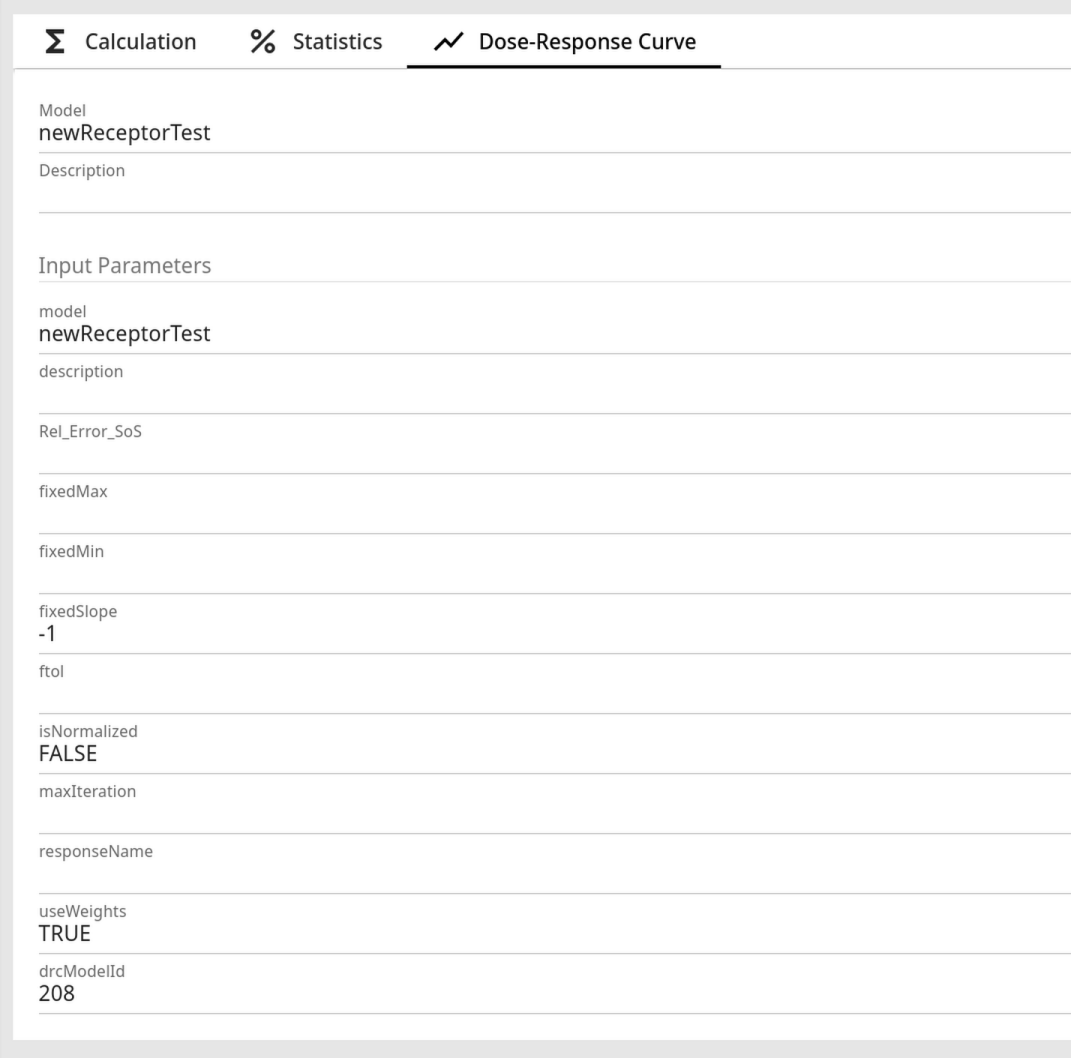
Dose-Response Curve
If the feature has been configured with dose-response curve fitting, you’ll find the relevant settings in this tab. The exact fields that are shown here, depend on which curve fitting Model you selected.
Editing a Feature
To edit a feature, click on the Pencil button next to the feature’s name:
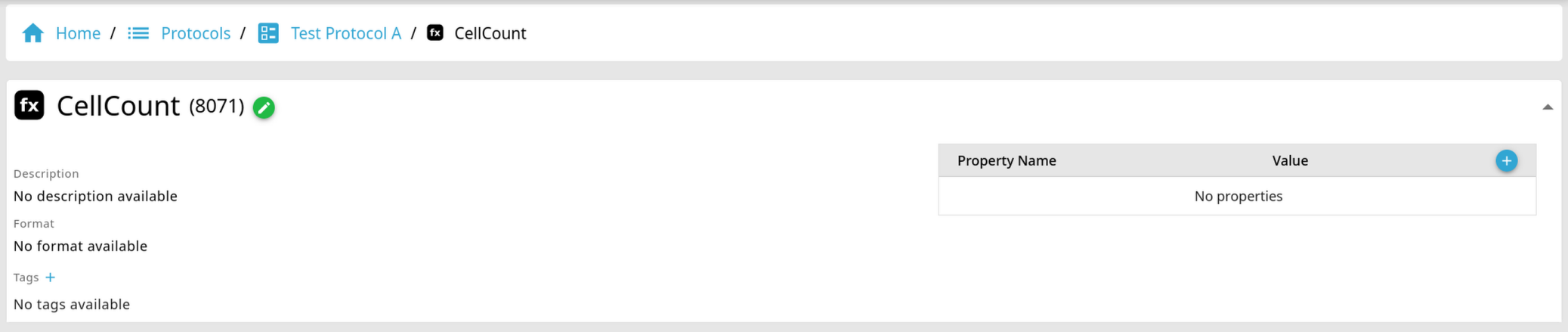
A dialog will open, taking you through the same configuration sections as when creating a new feature (see section Adding a New Feature above).